Running the Installer on MacOS
If you already have the installer running, continue in Installing TidaLuna.
Download the Installer
- Go to the TidaLuna Installer Releases page.
- Choose one of these macOS builds:
- App bundle (recommended):
- Intel:
installer-macOS-x86_64-vX.X.X.app.zip - Apple Silicon:
installer-macOS-aarch64-vX.X.X.app.zip
- Intel:
- Raw binary:
installer-macOS-x86_64-vX.X.Xorinstaller-macOS-aarch64-vX.X.X
- App bundle (recommended):
Run the app bundle (.app.zip) (recommended)
- Extract the
.app.zipfile. - Double-click the extracted
.app. - Continue with Installing TidaLuna.
Run the raw binary
Open Terminal in the folder where the binary was downloaded.
Run the following commands (replace with your actual file name):
bashxattr -d com.apple.quarantine installer-macOS-x86_64-vX.X.Xbashcodesign -s - -f --deep installer-macOS-x86_64-vX.X.Xbashchmod +x installer-macOS-x86_64-vX.X.XWARNING
If you skip this step, you will get an error when trying to run the installer:
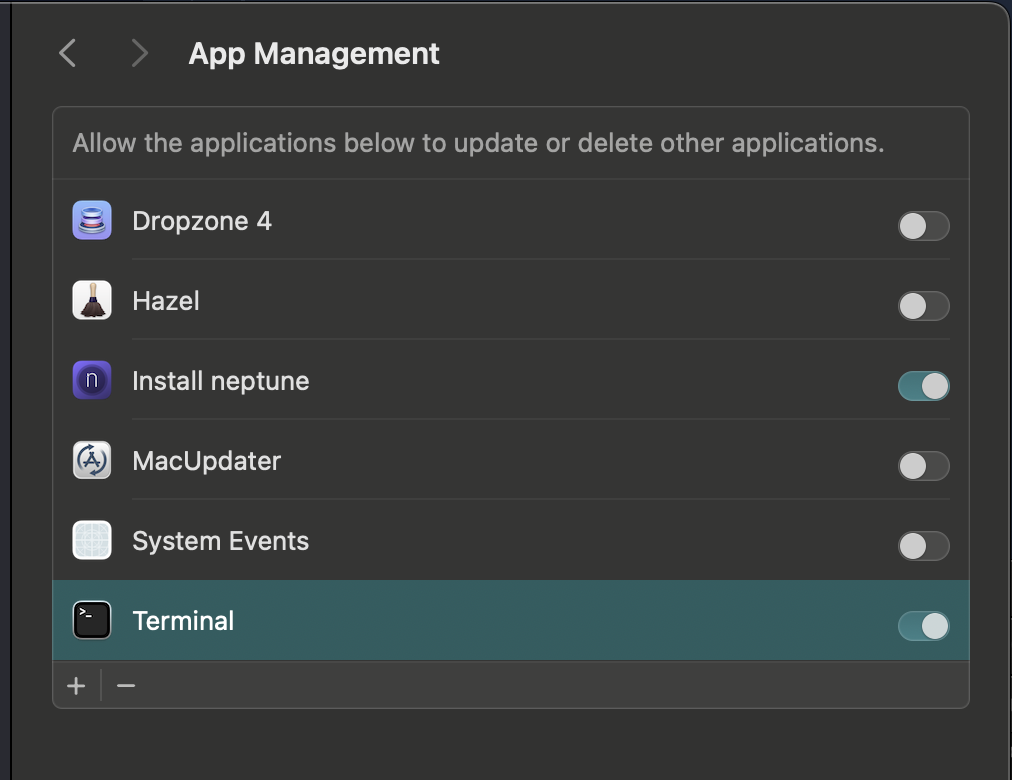
zsh: killed installer-macOS-x86_64-vX.X.XAllow Terminal to modify apps:
- Open Settings on macOS.
- Go to Privacy & Security -> App Management.
- Enable Terminal.
Run the installer:
bash./installer-macOS-x86_64-vX.X.XContinue with Installing TidaLuna.
Optional: Run in CLI mode
bash
./installer-macOS-x86_64-vX.X.X --headless --list-versions
./installer-macOS-x86_64-vX.X.X --headless --install
./installer-macOS-x86_64-vX.X.X --headless --uninstall
Use --path "/Applications/TIDAL.app/Contents/Resources" to target a custom installation path.
Troubleshooting
If you encounter permission errors, confirm Terminal has App Management permission and that the binary has executable permission. If you run into issues with the installer, you can try running it with sudo:
bash
sudo ./installer-macOS-x86_64-vX.X.X